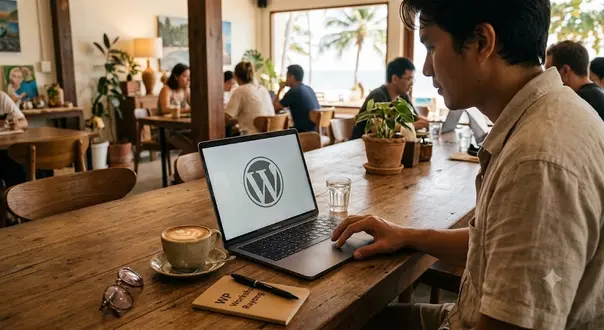
Free WordPress Workshop in Rayong (Zero to Local Site)
Table of Contents
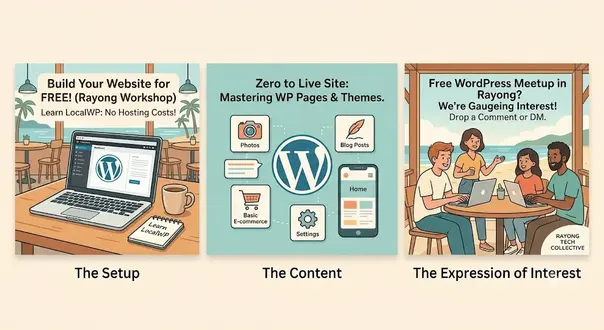
Hey everyone! I’m thinking about running a completely free, hands-on workshop in Rayong for anyone who wants to learn how to build a website from scratch.
We will be using LocalWP, meaning you can build and practice entirely on your own laptop for free—no need to buy hosting or a domain upfront.
I have put the link above so you can download it first.
- Language: The workshop and software will be in English (so a good command of English is required).
- Cost: 100% Free.
- Who it’s for: Beginners, local business owners, bloggers, or anyone wanting a new digital skill.
What to Expect at the Free WordPress Workshop in Rayong
Learn for Free: I will show you how to create and edit a website or blog using 100% free software.
No Upfront Costs: There is absolutely no need to buy a domain name or a .com address to get started.
Future Steps: If you decide you want to take your site live later on, I can help you sign up for a web host and secure your own domain when you’re ready.
Seeking Expressions of Interest
I’m just testing the waters right now.
If you’d be interested in attending a weekend session in Mueang Rayong / beach area, drop a comment below or send me a DM so I can gauge numbers and look into a venue!
My Links – Feel free to contact me
If viewing on your phone, please tilt it. ( AI responsive coding isn’t perfect yet )
Current course outline and time estimate
| Phase | Timing | Step | Key Focus & Action Items |
|---|---|---|---|
|
Phase 1: Preparation & Setup (The Sandbox) |
10 mins | Step 1: Intro to Local Environments | Explain why we build locally first (free, private, fast, and safe from breaking a live site). |
| 15 mins | Step 2: Downloading LocalWP | Walkthrough of downloading LocalWP for Windows/Mac and running the installation wizard. | |
| 15 mins | Step 3: Creating Your First Site | Clicking the “+” button, naming the site, and configuring the WP Admin username and password. | |
| 10 mins | Step 4: Navigating the Dashboard | Accessing /wp-admin and a quick tour of the sidebar (Posts, Pages, Appearance, Plugins). |
|
|
Phase 2: Branding & Identity (The Vision) |
10 mins | Step 5: Defining the Purpose | Deciding what the website will be (e.g., blog, local business site, portfolio). |
| 15 mins | Step 6: Choosing a Domain & Name | Brainstorming catchy, readable names. Tips on avoiding double letters and keeping it simple. | |
| 15 mins | Step 7: Colors & Typography | Selecting a 2–3 color palette based on brand mood. Introduction to free tools like Coolors.co. | |
|
Phase 3: Building the Foundation (The Structure) |
15 mins | Step 8: Installing a Theme | How to choose and install a lightweight, fast theme (e.g., Astra, GeneratePress). |
| 15 mins | Step 9: Setting Up Core Pages | Creating the essential starter trio: Home, About, and Contact pages. | |
| 20 mins | Step 10: The Block Editor | Introduction to Gutenberg blocks—adding headers, text paragraphs, images, and buttons. |